

A comfortable mouse plays a big role in making your gaming life easy. Even though it is easy to stumble onto a disappointing mouse glitch, most of these are easy to resolve in a few simple steps. This piece will focus on common gaming mouse problems you are likely to encounter, and suitable solutions on the same.
Before proceeding further, check out the following common causes of mouse failure.
- Is your battery well charged? A wireless mouse will need a well-charged battery to function smoothly. Should you realize a lag in your mouse or a complete shutdown, try charging it or replace its batteries with new ones.
- Are you using a mouse pad? While some gaming mouse works best on hard surfaces, others are wired for softer surfaces. Look at the manufacturer’s specifications and get your mouse a suitable surface. You can also clean your mouse pad to remove any debris that may be derailing performance.
- Unplug your mouse: The solution to your gaming mouse could simply result from unplugging and re-plugging it to your computer.
If none of these resolves your mouse problems, the following might offer a solution.
An Uneven/Rough Cursor Movement
If your cursor does not move smoothly, the problem could be dust in its sensor area. Clean the surface using a microfiber cloth. Avoid harsh chemicals. If you are using a table or desk surface with a glossy finish, the performance of your mouse may be affected. This is mostly the case for optical mouse. A glossy surface like that of glass too may not work well on your mouse. Try using a suitable mouse pad instead for better performance.
A Frozen Mouse Pointer
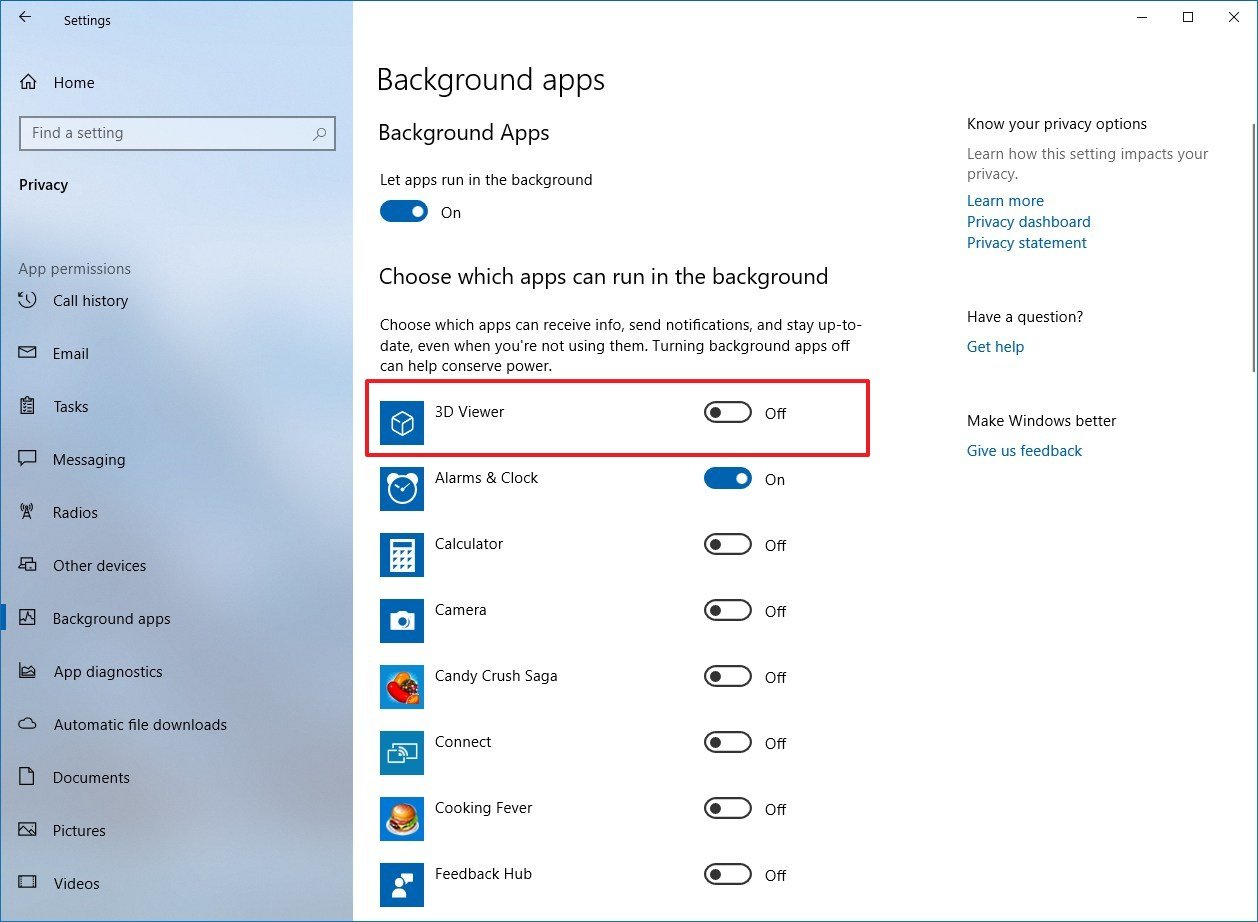
A mouse pointer may freeze up if several applications are running on the background of your PC. Check your CPU to see any applications or programs and close those you are not using.
If your gaming mouse has frozen once, the solution to your problem could simply be resolved by waiting for a few seconds. Should the problem persist, check at your desktop’s bottom right corner to see any programs that could be running. Close all unnecessary programs and this will most probably restore the proper functioning of your mouse. In case this does not solve the frozen mouse, shut down your PC and restart to get rid of troublesome applications or programs that may be lurking in the background.
Gaming Mouse Just Not Working
Software or hardware related problems could lead to a non-functioning mouse. Possible causes could be bad wiring, a loose connection, a bad IR wireless receiver, a faulty PS or USB port. Check all ports with another device to ensure that they are working well.
Some wireless or wired gaming mouse devices need the right drivers installed to work well. Ensure that your drivers are well installed and updated. If these steps do not get you back up and running, try turning your computer off and restarting it later.
Mouse Too Fast or Slow
In case your pointer is functioning too fast or too slow, you can resolve this at the control panel. Choose the mouse option and move on to the pointer options tab. From here, you will be in a position to adjust the mouse speed to a comfortable level.
Double-Clicking Problems
Double-clicking mostly results from a software configuration problem. Click on the control panel, tap the mouse option, and then choose the buttons tab. You can change the double click feature speed level to an amount that works well for you.
Upgrade Your Gaming Mouse
If none of these steps solves the issue you are having with your mouse, the best way forward is doing a replacement. Our top gaming mouse pick this year is the Logitech G203 prodigy.

A budget gaming mouse, G203 boasts of a 6,000DPI, 16.8 million RGB lighting color options, and an ergonomic, ambidextrous design. Costing as little as $27, Logitech G203 prodigy gaming mouse has features found only on high-end gaming mice. Read our detailed Logitech g203 review.
